Animation
You'll look inside a hero's walk and his idle breathing, play both as GIFs, and use pxart's numbers to check that each frame moves the way you meant it to.
The idea
One .px file can hold many pictures. Each is a frame with a name, like
walk/down/3: frame 3 of the group walk/down. An @anim line turns a group into an
animation, with how long each frame shows and where the character's feet are. From
hero.px:
@anim idle/right ms=240 pivot=23,47
@anim walk/down ms=110 pivot=12,31
Then each frame starts with an @frame line, followed by its grid of letters, like the
sprites in 01 · Format basics. pxart plays the frames in number order.
Before you start
From this folder, copy just the source files into a new folder of your own and go there. The commands below then make every output fresh, and print exactly what's shown here:
mkdir -p ~/pxart-02
cp hero.px hero-palette.px ~/pxart-02/
cd ~/pxart-02
~ is your home folder, and -p keeps mkdir quiet if the folder is already there.
The examples README says how to make pxart a command you can type.
Step 1: Read the animation lines
Open hero.px in a text editor. Near the top are the two @anim lines above.
What they say:
ms=110: each walk frame shows for 110 milliseconds, about nine frames a second.pivot=12,31: the pixel under the hero's feet, counted from the frame's top-left corner, which is 0,0. x grows to the right and y grows down, so in a 24x32 walk frame, 12,31 is the middle of the bottom row. pxart lines frames up on this pixel.
Further down, one frame changes its own timing:
@frame idle/right/0 ms=400The first idle frame stays up for 400 ms instead of the group's 240, a little pause before each breath.
Step 2: See every frame
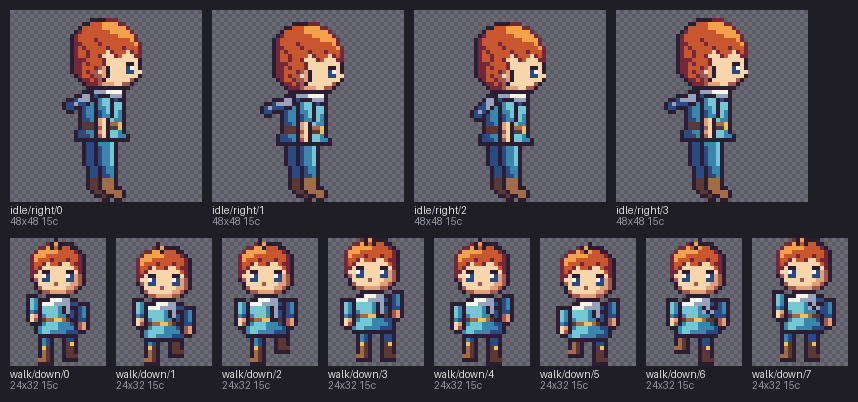
sheet lays frames out side by side on one PNG, each labeled with its name:
pxart sheet hero.px --fit --rows group --align pivot --scale 4 -o sheet.png--fitgives each frame a cell its own size. The idle frames are 48x48 and the walk frames 24x32, so the default (every cell as big as the largest frame) would waste room.--rows groupstarts a new row for each group.--align pivotlines up a group's frames by their pivot, so you can see the body move up and down from frame to frame.--scale 4draws every pixel as a 4x4 block.-o sheet.pngis the output file.
Step 3: Play the walk
anim turns a group into a GIF. hero.px:walk/down means "the walk/down frames of
hero.px": a colon, then the group.
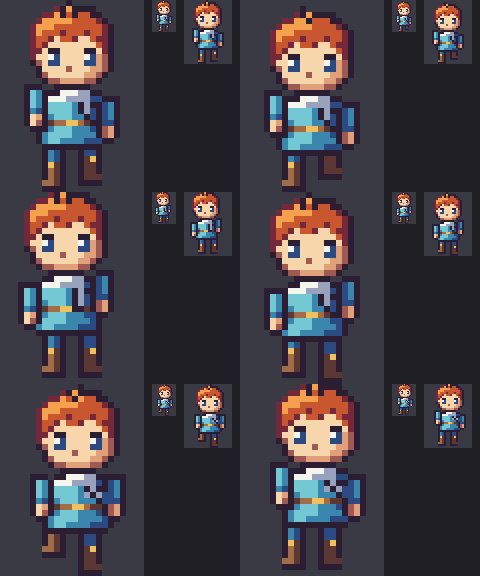
pxart anim hero.px:walk/down -o walk.gif --scale 6The GIF shows the walk at 6x, with 1x and 2x copies beside it so you can also see it at the size a game would draw it:
anim also writes walk.strip.png and prints one line of numbers per
frame. The next step reads them.
Step 4: Read the walk's numbers
Two of the lines anim printed:
  walk/down/0                110ms  vs walk/down/7: shift -1,+1 then 72px (20%) (no shift: 260px)
  walk/down/1                110ms  vs walk/down/0: shift +0,+1 then 26px (7%) (no shift: 205px)
Each line compares a frame with the one before it (frame 0 with frame 7, since the walk loops). When you walk, your whole body bobs up and down, and pxart first finds that bob:
shift +0,+1means the whole hero moved 0 pixels sideways and 1 pixel down (+1 is down, because y grows down).then 26px (7%)is what still changed after taking that move out: 26 pixels, 7% of the hero. That's the arms and legs, the part you actually drew.(no shift: 205px)is how many pixels changed without taking the bob out. Most of those are just the bob.
In walk.strip.png, the top row is the frames and the bottom row
marks in pink exactly those leftover pixels:
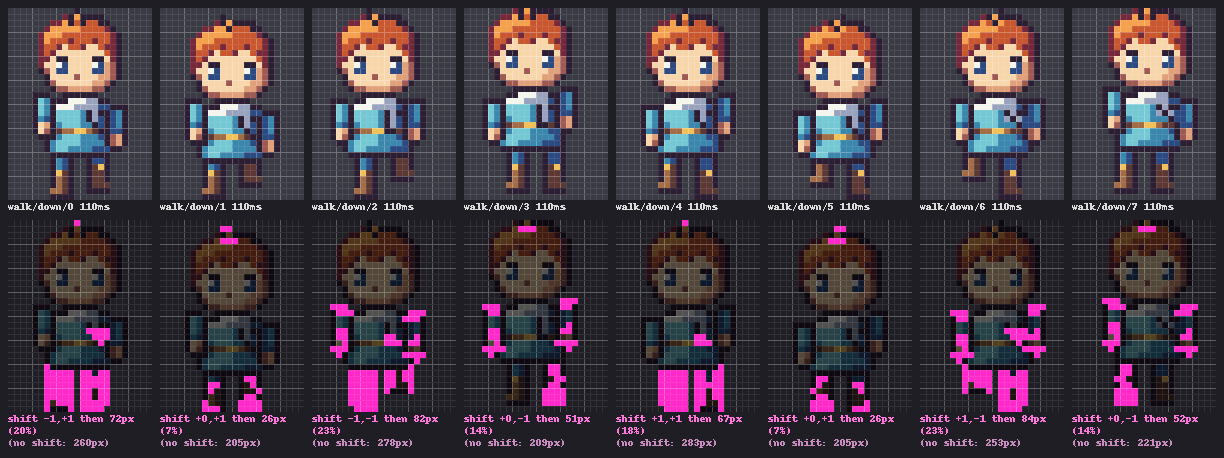
If a walk frame shows then 0px, nothing moved but the bob: the legs are missing a pose.
Step 5: Play the idle
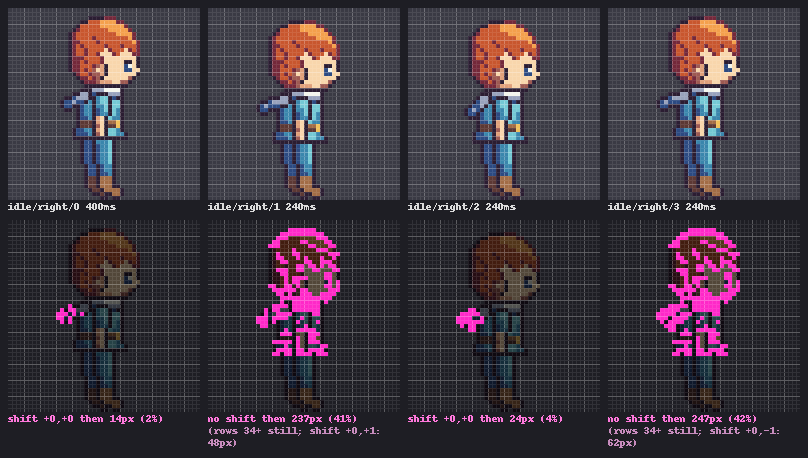
The idle is different: the legs stand still and only the body above them breathes.
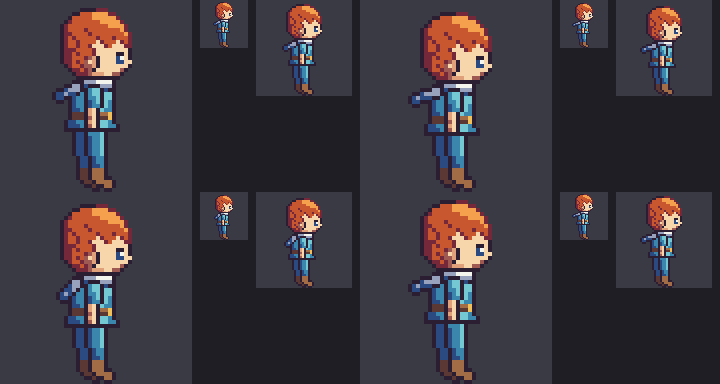
pxart anim hero.px:idle/right -o idle.gif --scale 4Two of its lines:
  idle/right/0               400ms  vs idle/right/3: shift +0,+0 then 14px (2%)
  idle/right/1               240ms  vs idle/right/0: no shift then 237px (41%) (rows 34+ still; shift +0,+1: 48px)
Frame 0 shows its own 400 ms from Step 1. For frame 1, shifting the whole hero would
make the still legs look like they moved, so pxart doesn't shift. It says no shift,
and rows 34+ still: row 34 and every row below it are exactly the same as in the frame
before. That's how you know the feet are planted. The shift it would have used comes
last, for comparison.
Step 6: Lay one frame over another
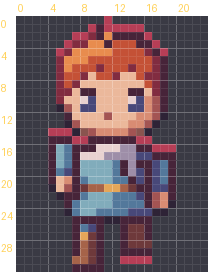
A 1-pixel move is easy to miss by eye. onion draws one frame over a red silhouette of
another, and says how the edges moved:
pxart onion hero.px:walk/down/0 hero.px:walk/down/1 -o onion.pnghero.px:walk/down/0 names one frame: the group, a slash, and the frame's number. The
first frame is A (the silhouette), the second is B.
A (frame walk/down/0) covers x 4..19, y 0..31 (on the 24x32 canvas, lined up by pivot)
B (frame walk/down/1) covers x 4..19, y 1..31
B vs A: left +0, right +0, top +1, bottom +0; best shift +0,+1 then 26px changed (no shift: 205px)
wrote onion.png
The canvas is the 24x32 area both frames are drawn on, placed so their pivots land on the same pixel. The first two lines say which columns and rows each frame's drawn pixels cover: A's go from row 0 to 31, B's from row 1 to 31. The third line compares them.
top +1: B's top edge is 1 pixel lower than A's, so the head dropped. bottom +0: the
feet stayed on the ground. The red peeking out above the head is where A was:
Step 7: Check just the feet
To see whether a foot lifted, look only at the bottom rows:
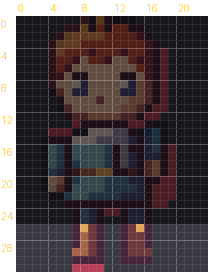
pxart onion hero.px:walk/down/0 hero.px:walk/down/3 --feet 6 -o onion-feet.png--feet 6 counts only the bottom 6 rows, so a swinging arm above doesn't get mixed in.
The image darkens the rows it isn't looking at.
A (frame walk/down/0) covers x 7..16, y 26..31 (rows 26-31 of the 24x32 canvas, lined up by pivot)
B (frame walk/down/3) covers x 7..16, y 26..30
B vs A (bottom 6 canvas rows 26-31; A opaque in 26-31, B in 26-30): left +0, right +0, top +0, bottom -1; best shift +0,-1 then 9px changed (no shift: 11px)
wrote onion-feet.png
bottom -1: in frame 3 the lowest pixel is 1 row higher (it stops at row 30, not 31).
One foot is off the ground.
Try it yourself
- Slow it down.
pxart anim hero.px:walk/down --fps 4 -o slow.gif --scale 6plays the walk at 4 frames a second, whatever themsin the file say. - Just the numbers.
pxart anim hero.px:idle/right, with no-o, prints the lines and writes nothing. - The other foot.
pxart onion hero.px:walk/down/4 hero.px:walk/down/7 --feet 6 -o feet47.pngshould show the other foot lifting the same way.
Commands used
pxart sheet FILE -o OUT.png: every frame side by side.pxart help sheetpxart anim FILE:GROUP -o OUT.gif: a GIF, a strip and a line of numbers per frame.pxart help animpxart onion FILE:A FILE:B -o OUT.png [--feet N]: one frame over another's silhouette.pxart help onion
The Commands section of the main README covers all of them.
examples/02-animation/README.md in the repository.Edit on GitHub