Import from PNG
You'll take a sprite sheet PNG of a beetle's two walks, cut it into frames in a .px
file, and prove that not a single pixel changed on the way.
The idea
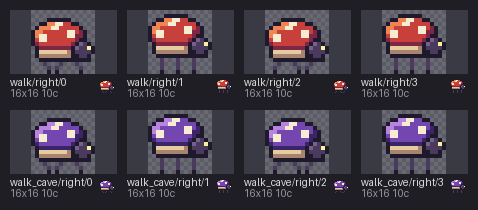
Most pixel art lives in PNG files. A sprite sheet is one PNG with many frames laid out
on a grid, like this one, sheet.png, shown here at 8x:


Each frame is a 16x16 square: four frames of a walk across the top row, four of a darker
cave walk below. from-png cuts the sheet along that grid and writes the frames as
letters in a .px file, so you can edit them with pxart. diff then compares the new
file with the original, pixel by pixel.
Before you start
From this folder, copy just the source files into a new folder of your own and go there. The commands below then make every output fresh, and print exactly what's shown here:
mkdir -p ~/pxart-07
cp beetle.px beetle_pal.px sheet.png ~/pxart-07/
cd ~/pxart-07
~ is your home folder, and -p keeps mkdir quiet if the folder is already there. sheet.png is the one input that isn't a .px file (the last section shows how it was made).
The examples README says how to make pxart a command you can type.
Step 1: Cut the sheet into frames
pxart from-png sheet.png --grid 16x16 --names walk/right,walk_cave/right \
  --palette beetle_pal.px -o imported.px
--grid 16x16cuts the sheet into 16x16 squares, row by row.--names walk/right,walk_cave/rightnames the rows: the top row's frames becomewalk/right/0towalk/right/3, the bottom row'swalk_cave/right/0to/3.--palette beetle_pal.pxuses the letters from the beetle's palette file for the colors it finds, so the new frames read like the originals. Without it, pxart makes up its own letters.-o imported.pxis the new file.
wrote imported.px (8 frame(s): walk/right 4, walk_cave/right 4)Step 2: Look at what came back
pxart sheet imported.px --rows group --scale 4 -o imported.pngsheet lays out every frame with its name; --rows group puts each walk on its own row,
and --scale 4 draws each pixel 4x4.
imported.px is an ordinary sprite file now: open it in a text editor and
the beetle is there in letters.
Step 3: Prove nothing changed
beetle.px is the file the sheet was drawn from. diff draws both files and
compares every frame pixel by pixel, pairing frames with the same name:
pxart diff beetle.px imported.pxwalk/right/0: same: 16x16, every pixel
...
walk_cave/right/3: same: 16x16, every pixel
8 frame(s): 8 sameEvery one of the eight frames came back exactly. That's what lossless means here.
Step 4: See what a difference looks like
To see diff catch something, compare two frames that really are different: the first
frame of the walk against the first of the cave walk.
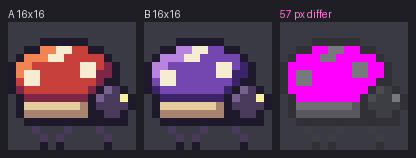
pxart diff beetle.px:walk/right/0 imported.px:walk_cave/right/0 -o diff.png-o diff.png also draws the two frames side by side, and a third copy with every
pixel that differs in bright pink.
57 px differ in 1,3,12,7 (x,y,w,h)
wrote diff.png
(exit 1)
57 pixels differ, all inside the box that starts at x=1, y=3 and is 12 wide and 7 tall:
the shell, which is red in one and purple in the other. (exit 1) means diff reported
a difference: a script that runs it can tell the two apart from a match, which exits 0.
Where the sheet comes from
So that this example can be rebuilt from scratch, build.sh makes
sheet.png from beetle.px with scene, placing each frame in its square, and then
the 8x copy. You don't need to run this; it's here so you can see there's no trick:
items=()
for i in 0 1 2 3; do
  items+=(beetle.px:walk/right/${i}@$((16 * i)),0 beetle.px:walk_cave/right/${i}@$((16 * i)),16)
done
pxart scene --size 64x32 --scale 1 --bg transparent -o sheet.png "${items[@]}"
pxart scene --size 64x32 --scale 8 -o sheet.x8.png sheet.png@0,0
The loop builds a list like beetle.px:walk/right/2@32,0: frame 2 of the walk, at x=32
in the top row. --bg transparent leaves the empty pixels see-through.
Try it yourself
- Put the timing back. A PNG has no timing, so
imported.pxhas no@animlines.pxart anim-set imported.px:walk/right ms=110adds one, and thenpxart anim imported.px:walk/right -o walk.gif --scale 6plays it. - Just one walk.
pxart diff beetle.px:walk_cave/right imported.px:walk_cave/rightcompares only the four cave frames. - Your own sheet. Any PNG laid out on a grid works. If its frames aren't 16x16,
change
--grid, and leave out--paletteto let pxart pick letters.
Commands used
pxart from-png SHEET.png --grid WxH --names ROW,ROW -o OUT.px: cut a sheet into frames.pxart help from-pngpxart diff A B [-o DIFF.png]: compare two renders pixel by pixel.pxart help diffpxart sheet FILE -o OUT.png: every frame side by side.pxart help sheet
The Commands section of the main README covers all of them.
examples/07-import/README.md in the repository.Edit on GitHub